Data Review
Data review is no longer just “submit and wait.” It involves distinct workspaces and responsibilities for authors, review members, and review admins. This page is organised as pre-submit steps → roles → review workspace → FAQ.
Before submission
Before sending data into review from My Data, complete two steps first:
- Run Data check
- Click Submit for review
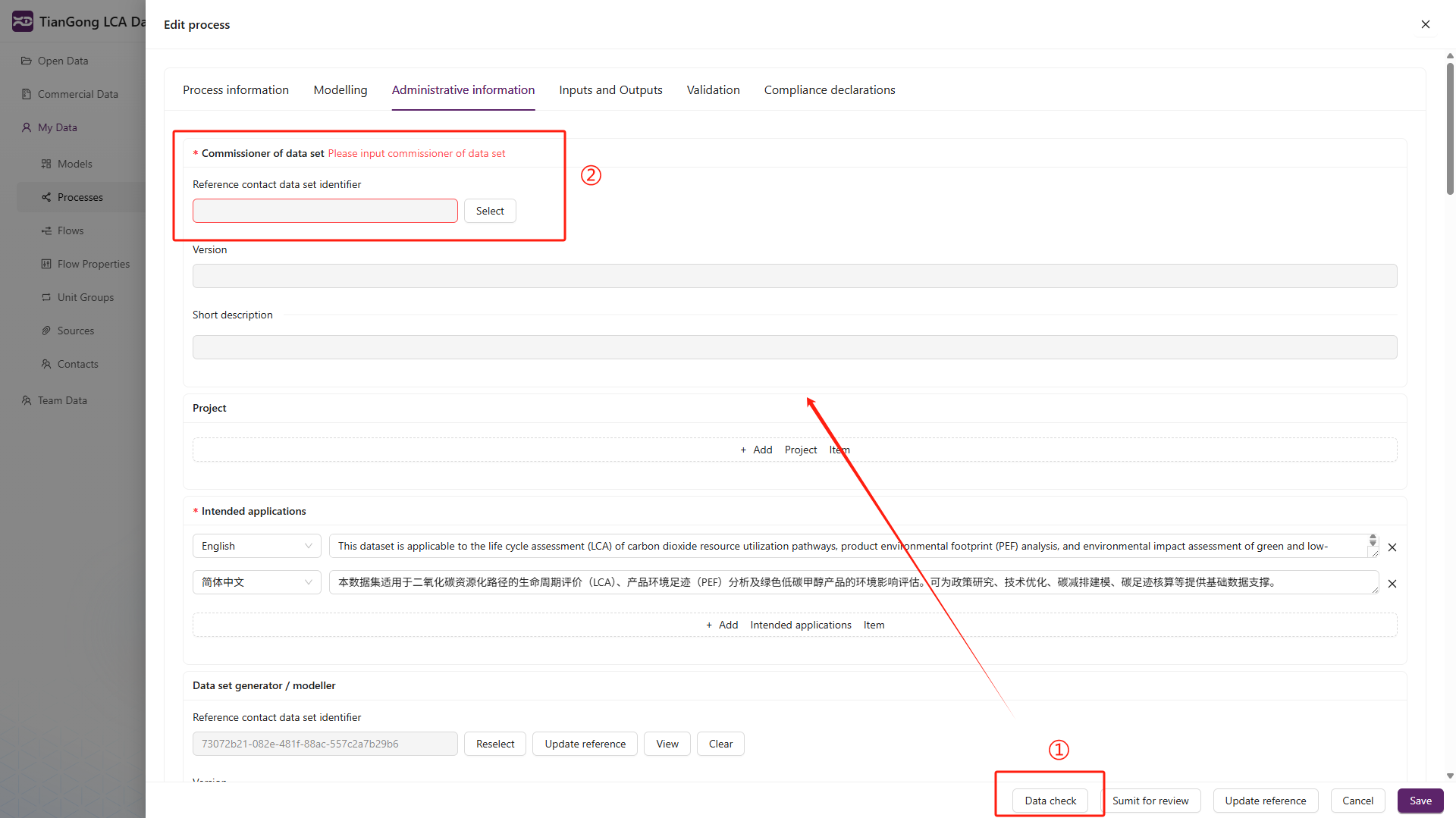
If the platform finds blocking issues during submission, it opens a problem list. Fix those issues first, then submit again.
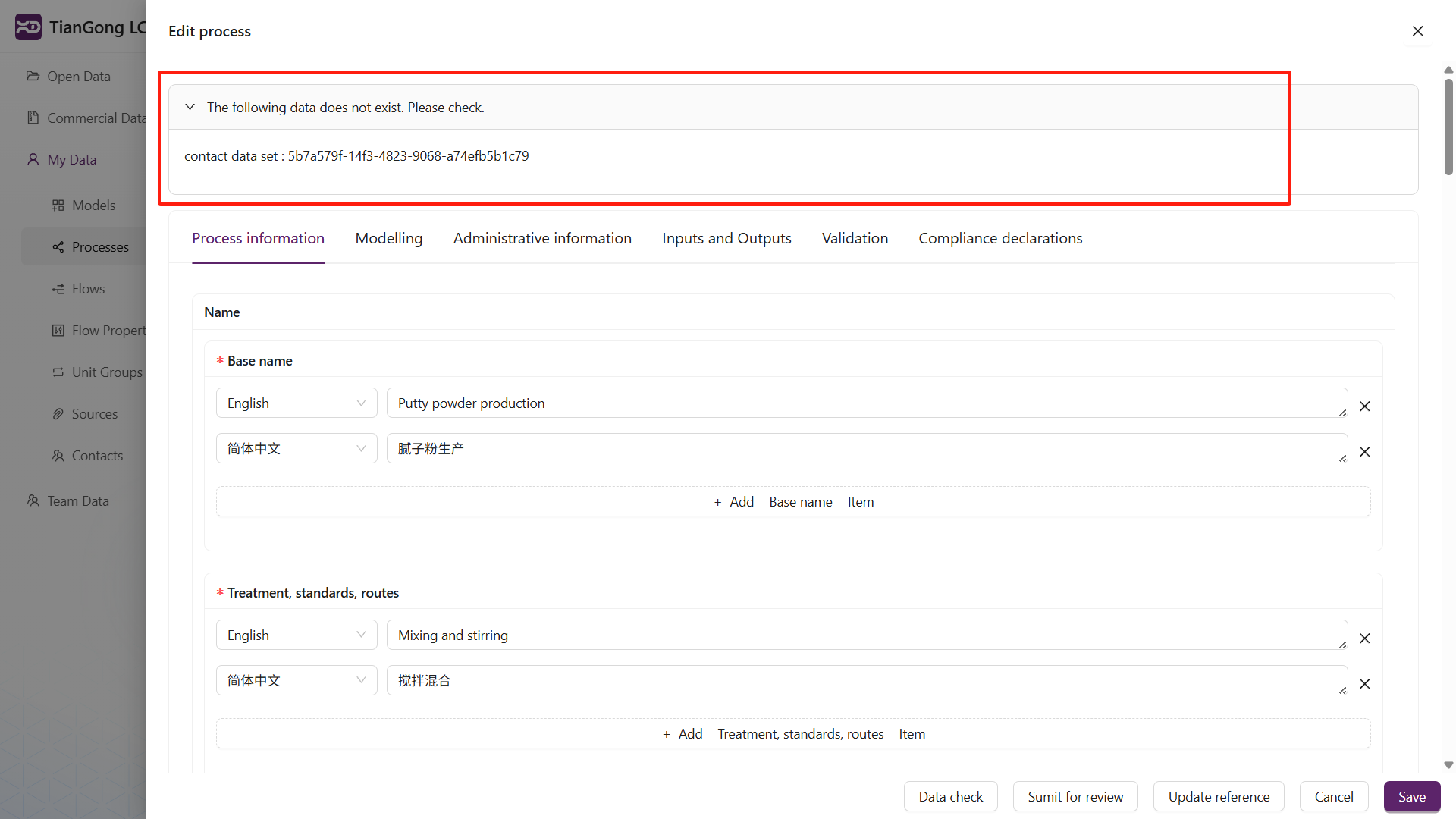
For process datasets, Submit for review now calls the review submission directly. If the system rejects the submission, fix the issues shown on the page, save again, and resubmit. You no longer need to wait for a separate numerical-stability-gate task in Task Center.
Who does what
| Role | Primary responsibility | Main entry |
|---|---|---|
| Author | Model data, self-check, submit for review, revise after feedback | My Data |
Review member (review-member) | Review assigned tasks and submit review comments | Avatar menu → Review Management |
Review admin (review-admin) | Assign work, track progress, manage review members, approve or reject the full review | Avatar menu → Review Management |
| Team admin | Coordinate with authors and help track project progress | My Team, notification center |
Review roles and team roles are different permission systems. A person may have both, or only one of them.
How to open the review workspace
Users with a review role can open Review Management from the avatar menu in the top-right corner.
This workspace is role-gated and does not stay visible in the left navigation for everyone.
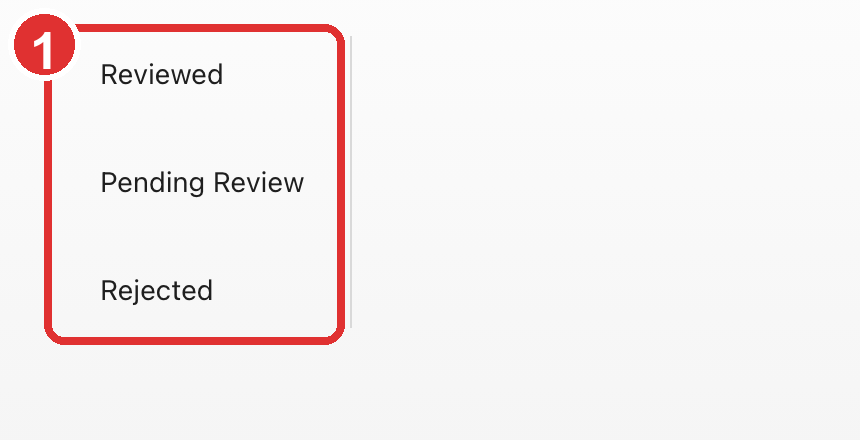
The marked area 1 shows the tabs visible to the current account. This screenshot is a
review-member example; a review-admin sees a different management-oriented tab set.
Review admin workspace
When a review-admin opens Review Management, the current tabs are:
- Unassigned Task
- Assigned Task
- Rejected Task
- Member Management
Unassigned Task
This is where newly submitted reviews are assigned to review members.
Typical actions include:
- Selecting multiple tasks in bulk
- Opening Select Reviewer
- Setting a review deadline
- Rejecting the review at the whole-task level
Use this tab first whenever a new submission still needs reviewer assignment.
Assigned Task
This tab is for monitoring already assigned work.
Review admins can typically:
- Check review progress
- Open Review Progress
- Add more reviewers to unfinished work
- Revoke reviewers that are still pending
- Approve or reject the whole review
Rejected Task
This tab stores tasks that were rejected at the review-admin level, making it easier to trace what needs to be revised or reassigned.
Member Management
Member Management is where the review team itself is maintained. Typical actions include:
- Adding review members
- Removing review members
- Promoting
review-membertoreview-admin - Demoting
review-adminback toreview-member - Inspecting each member's pending and reviewed counts
Review member workspace
When a review-member opens Review Management, the current tabs are:
- Reviewed
- Pending Review
- Rejected
Pending Review
This is the main working area for review members. It lists the tasks currently assigned to the logged-in reviewer.
Common actions include:
- Opening task details
- Filling in review feedback
- Using Temporary Save to keep work in progress
- Using Save to submit the review result
The editing experience differs by object type:
- Process review is more form-oriented
- Model review typically combines graph views with a right-side information panel
Reviewed
This tab shows tasks that the current review member has already processed.
Rejected
This tab is mainly for tasks that were rejected at the review-admin level.
If a task appears here, it usually means the whole review flow was rejected, not just that an individual reviewer wrote a negative comment.
What authors should know
Even if an author does not have a review role, they should still understand the review rhythm:
- Finish modelling and self-check in My Data
- Click Submit for review
- Wait for a review admin to assign reviewers
- Revise according to review feedback
- Resubmit if necessary
Also watch the Data Notifications tab in the top-right notification center so that review feedback is not missed.
Status filters
Review-related lists commonly include status filters to help locate items at different stages.
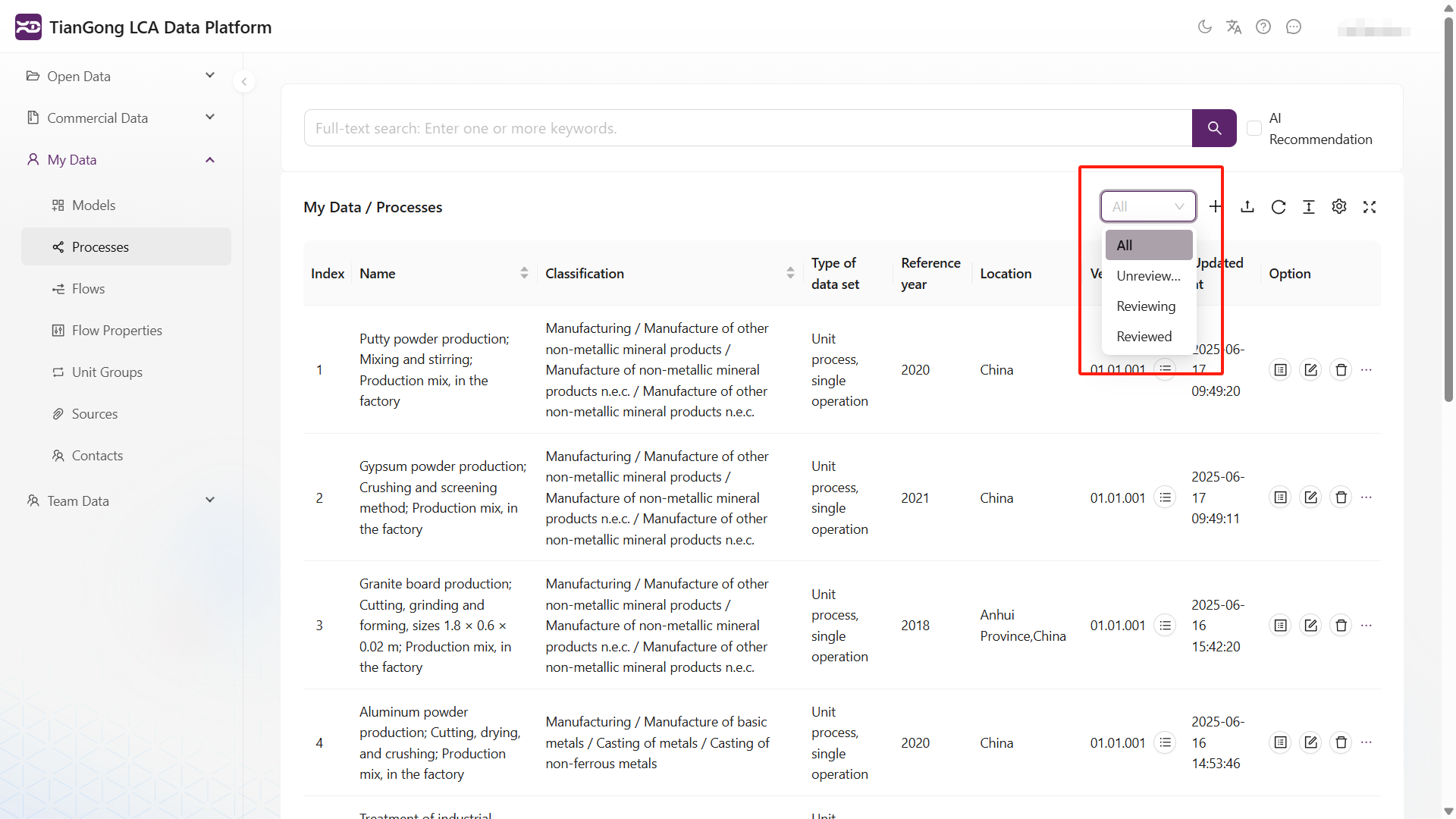
In practice, interpret those statuses through your role:
- Authors care whether they must revise something
- Review members care which tasks are still pending
- Review admins care which tasks are unassigned or stuck
FAQ
Why can’t I see Review Management?
Because the entry is shown only to review-admin and review-member. Regular authors can submit
for review without having access to the review workspace itself.
Why did submission not immediately become an active review?
Submission only enters the workflow. A review admin usually still needs to assign reviewers before the real review work begins.
I am a team admin. Why do I still not see Review Management?
Because team administration and review roles are separate permission domains.
Where can I compare all of these permissions quickly?
Continue with Permissions & Data Spaces.