Create My Data
Within “My Data” you control the full lifecycle of TianGong LCA datasets. This guide breaks the work into three stages—Preparation → Build datasets → Data validation & publish—to minimise rework and keep references consistent.
Before you start
Common rules
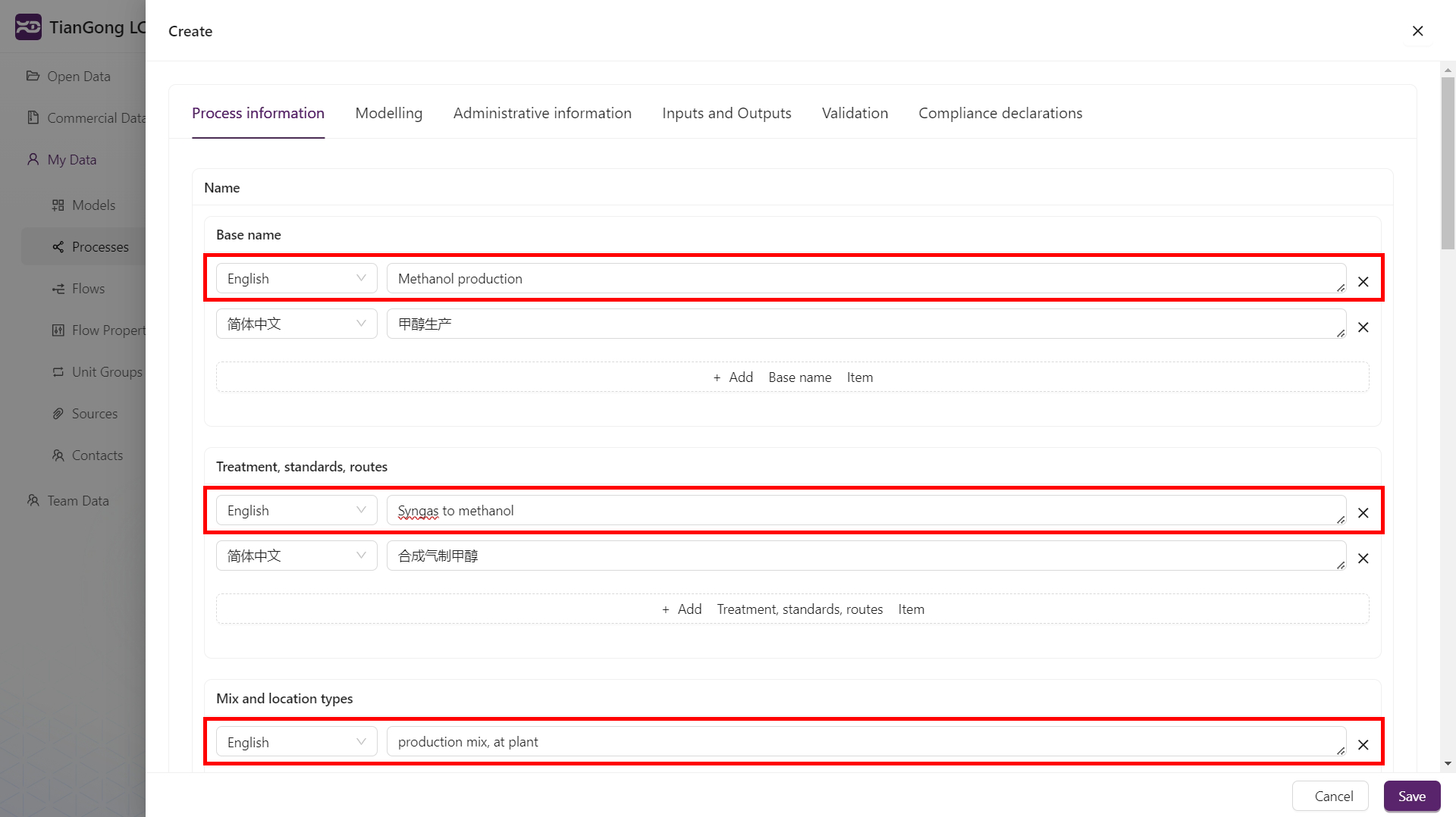
- Language fields: Whenever a field offers multiple languages, the English input is mandatory. Match the language selector to the content you enter.
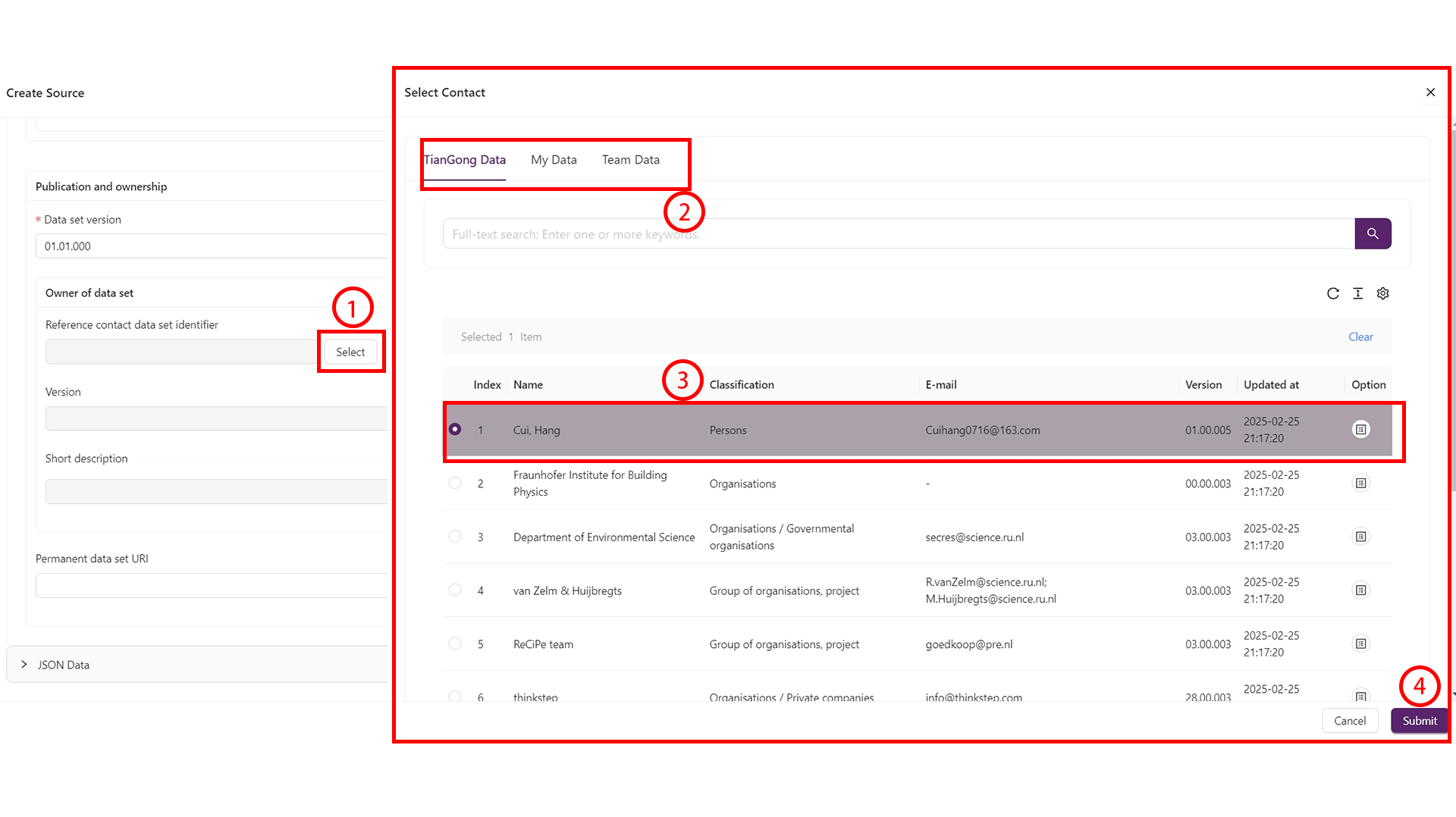
- Selection panels: For fields such as “Dataset format” or “Compliance system name”:
- Click the “Select” button next to the field.
- Use the tabs to switch categories.
- Tick the desired row (highlighted in purple).
- To reference a historical version, open All Versions for that row, select the version, then save.
- Click “Save” to confirm and exit the panel.
- Versioning: For a first-time dataset, fill in or confirm the version field as required by the page, then save frequently to prevent data loss. When you open Create Version from All Versions, the version field shows “The new version will be generated automatically.” The system creates the next version from the selected source version, so do not edit the version number manually.
Recommended preparation order
To ensure every reference exists when you start modelling, prepare these items first:
- Contacts: Identify responsible people and their email addresses.
- Sources: Gather literature, reports, or survey materials; upload any supporting files.
- Unit groups & flow properties: Reuse standard definitions whenever possible. Only create new ones after team review.
- Flows: Define flows with the correct unit groups and properties so that processes can reference them immediately.
Once the groundwork is complete, move on to processes and models.
Build datasets
Create a process
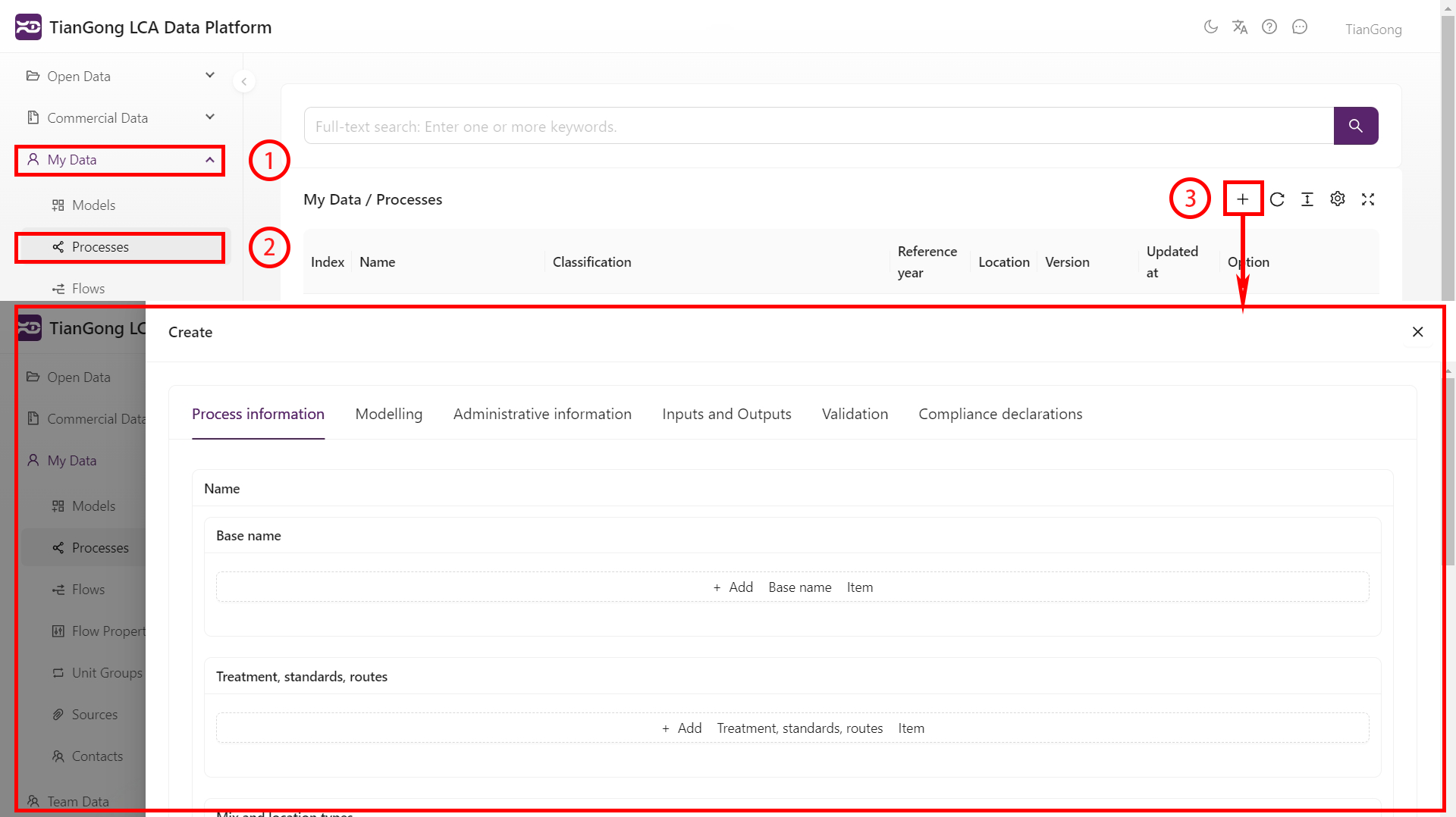
- Open My Data → Processes and click
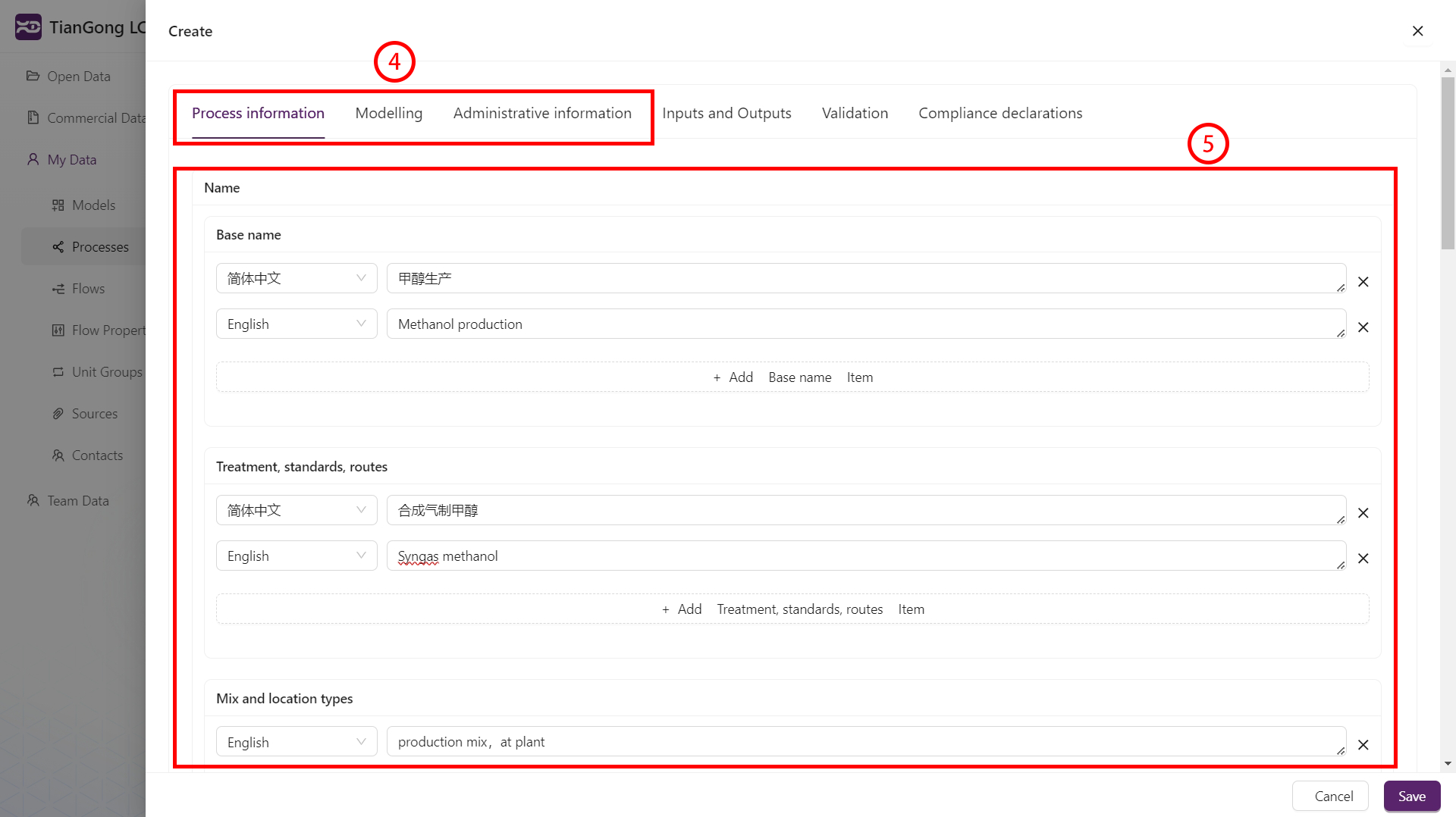
+. - Complete the “Process information”, “Modelling information”, and “Management information” sections.
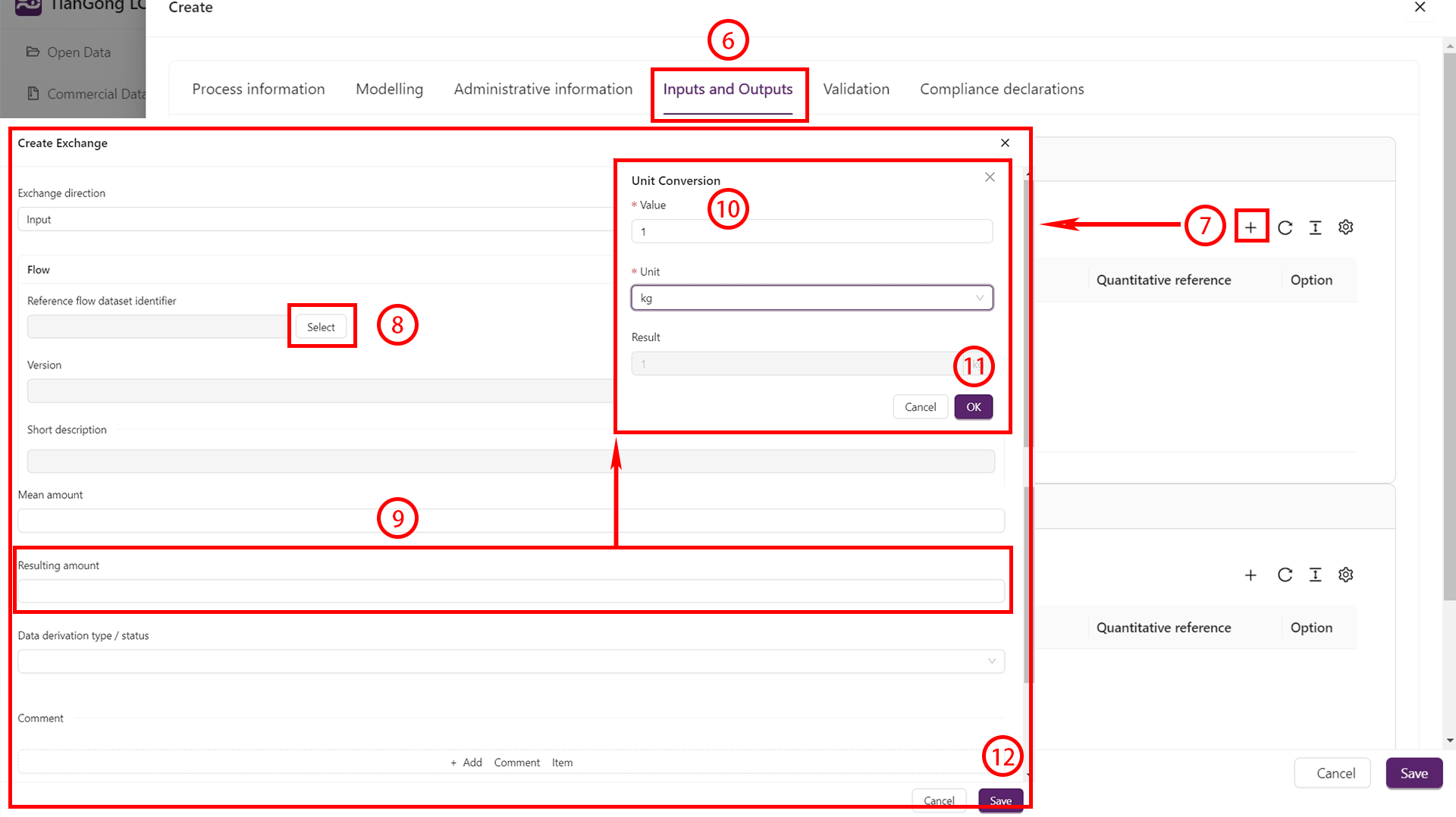
- Switch to Inputs & Outputs to add flows:
- Click
+to reference an existing flow or create a new one (see Create a flow). - Enter the quantity and unit; perform conversions if needed.
- Save and repeat until all flows are listed.
- Click
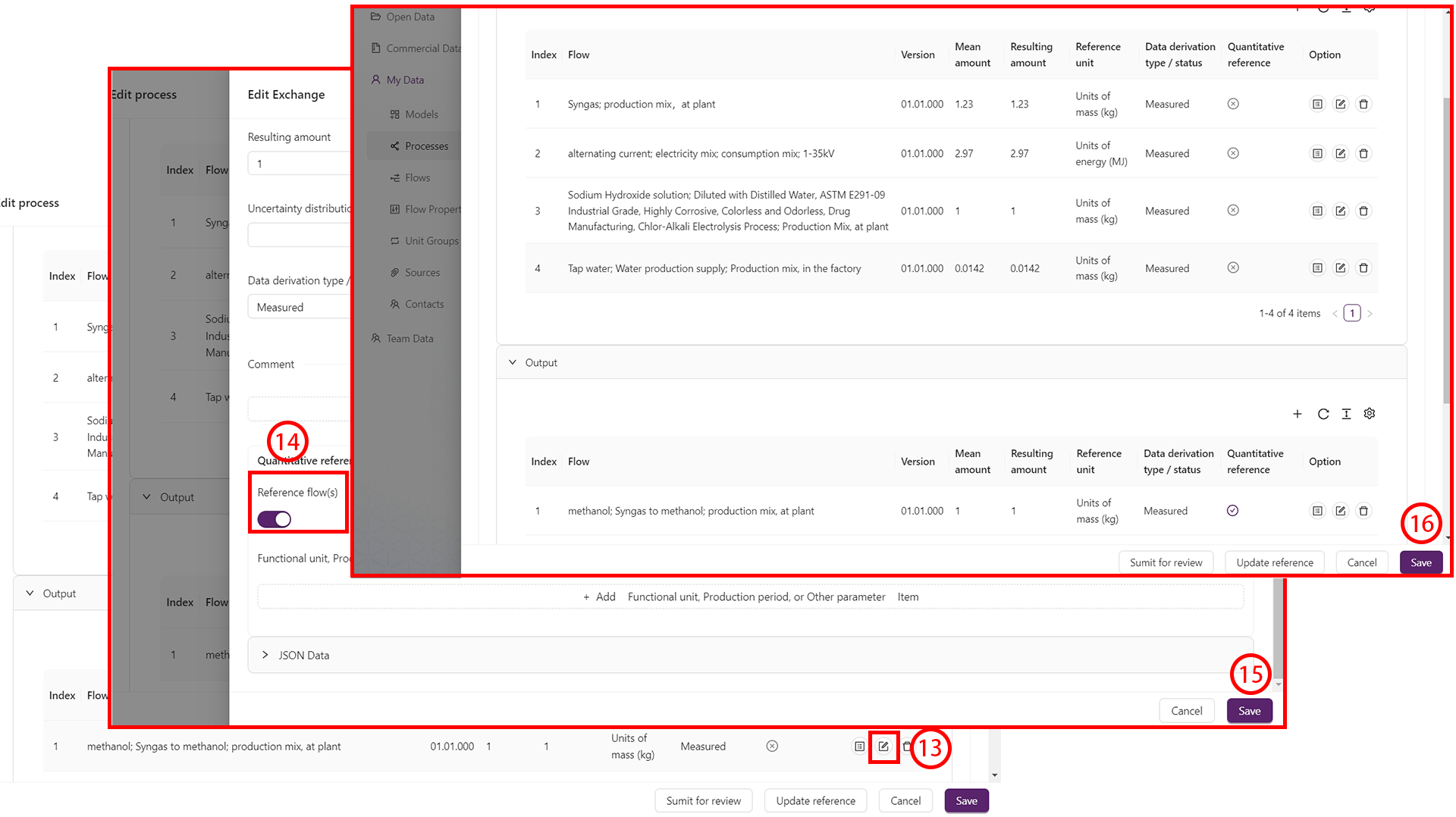
- Designate the main output as the Reference flow and save.
- Click Save at the bottom to store the process configuration.
Create a model
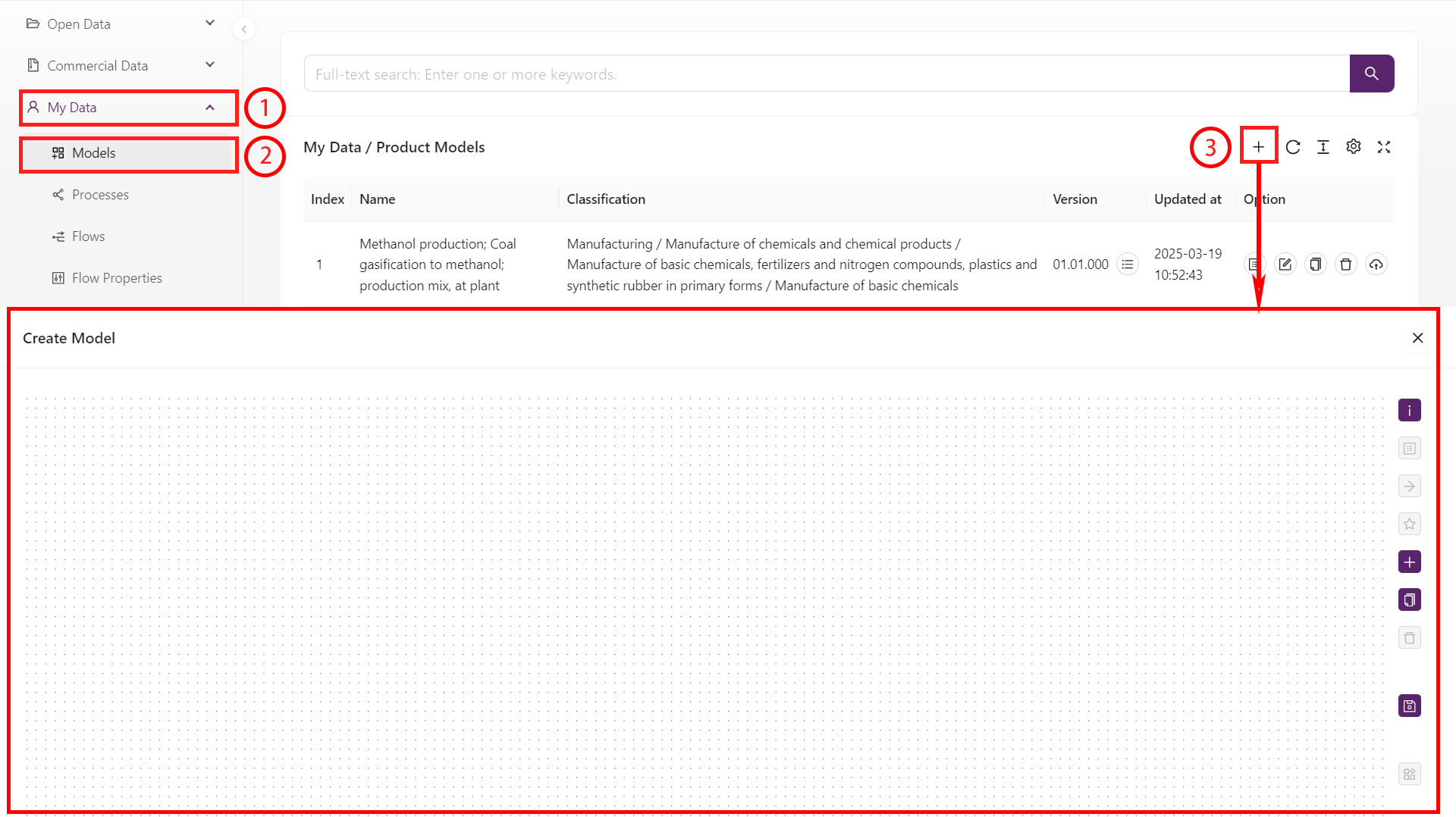
- Open My Data → Models and click
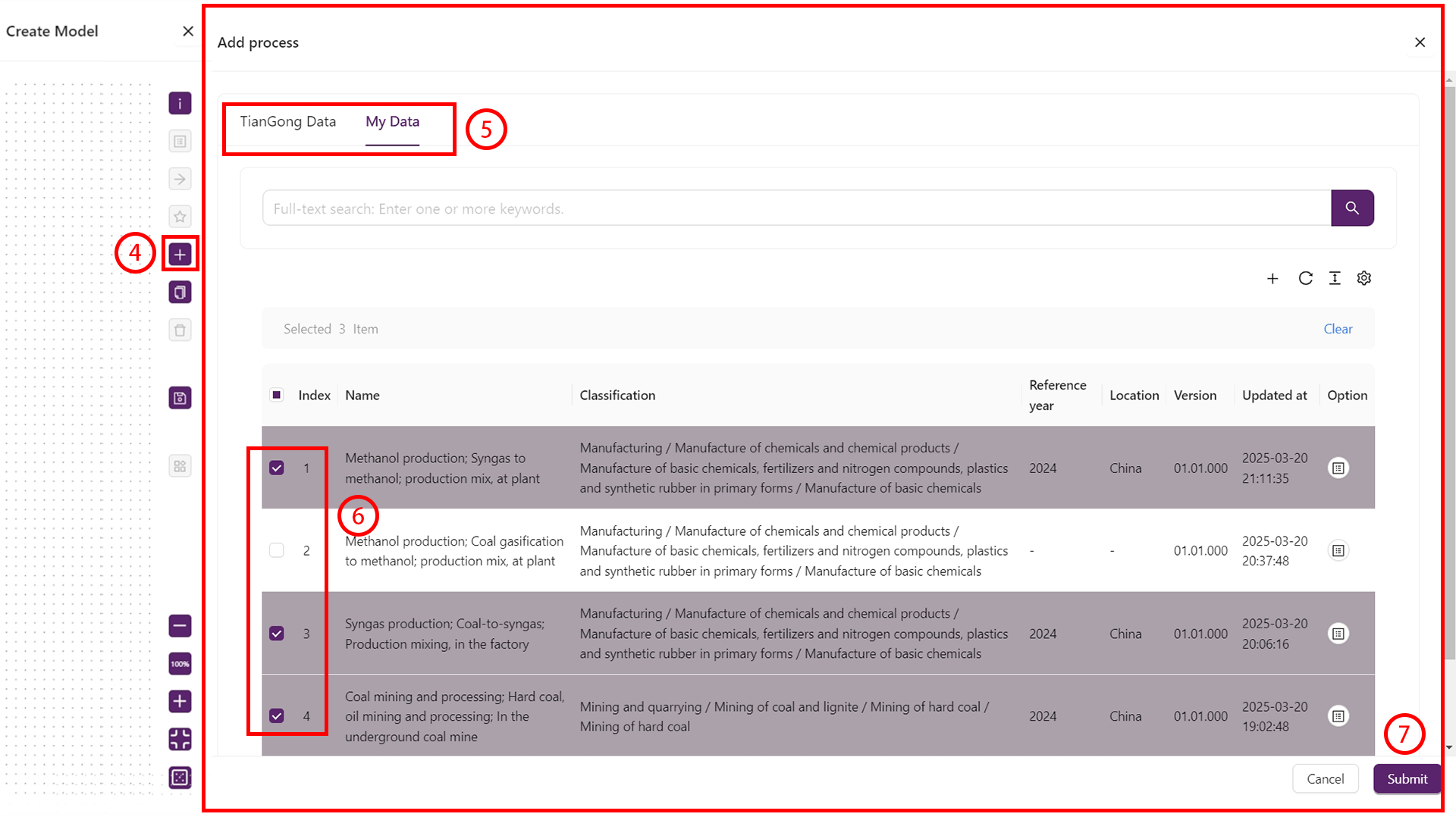
+. - Use the node selector to add the processes that belong to the model.
- For each node, open Inputs/Outputs and connect the required flows.
- Arrange the nodes, set the reference process, and specify the reference flow quantity.
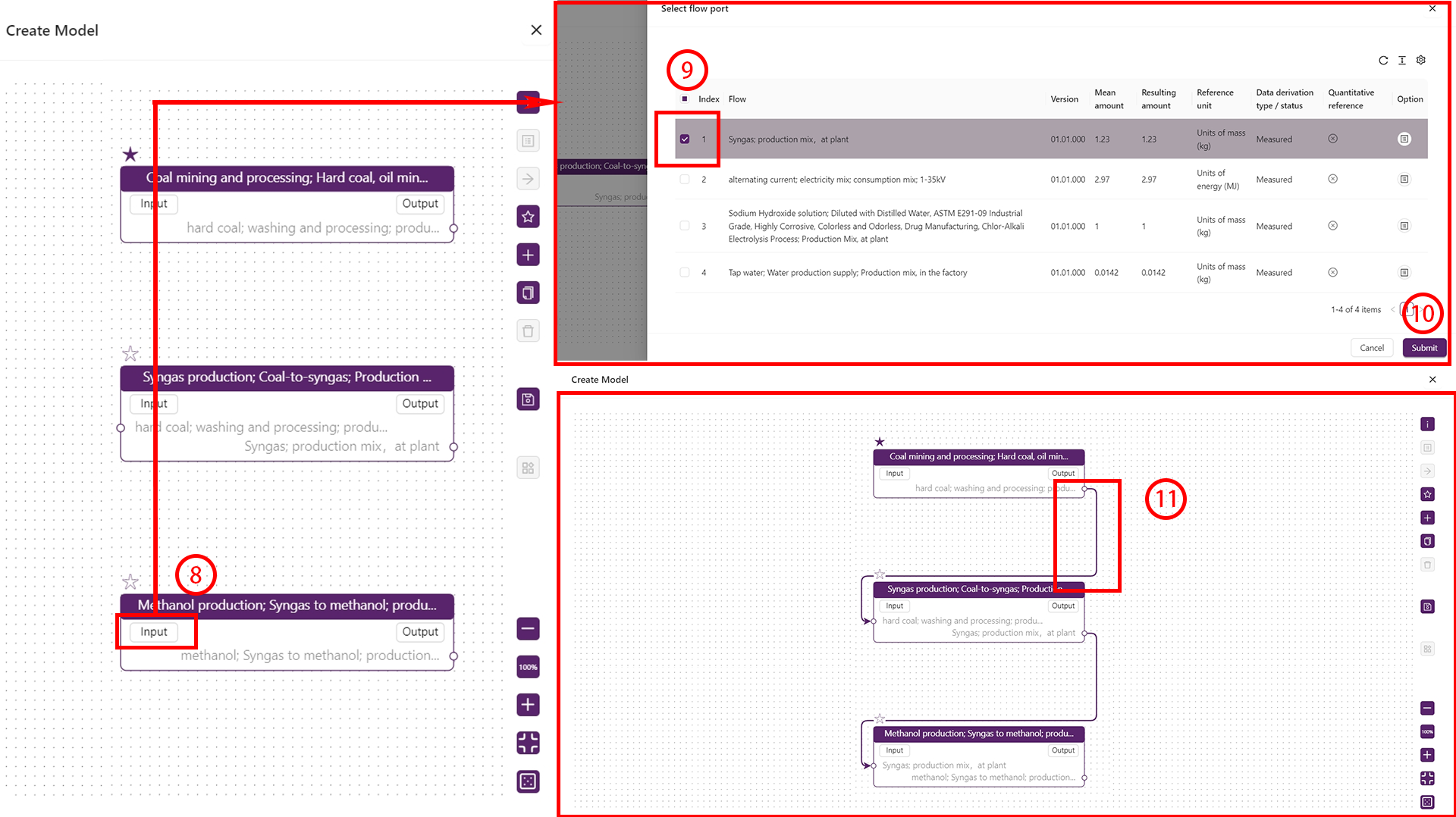
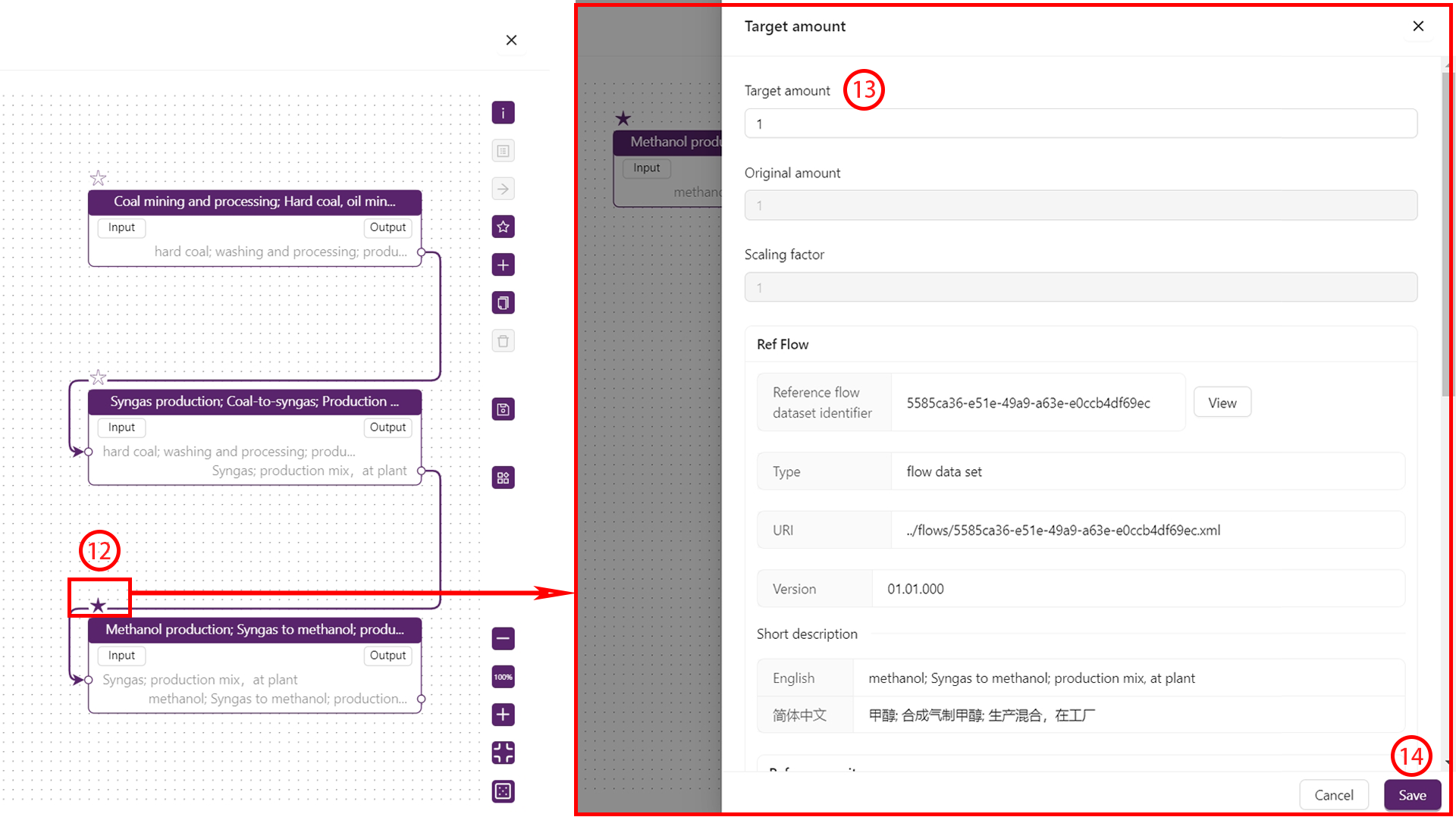
- Complete “Model information”, “Modelling & validation”, and “Management information”.
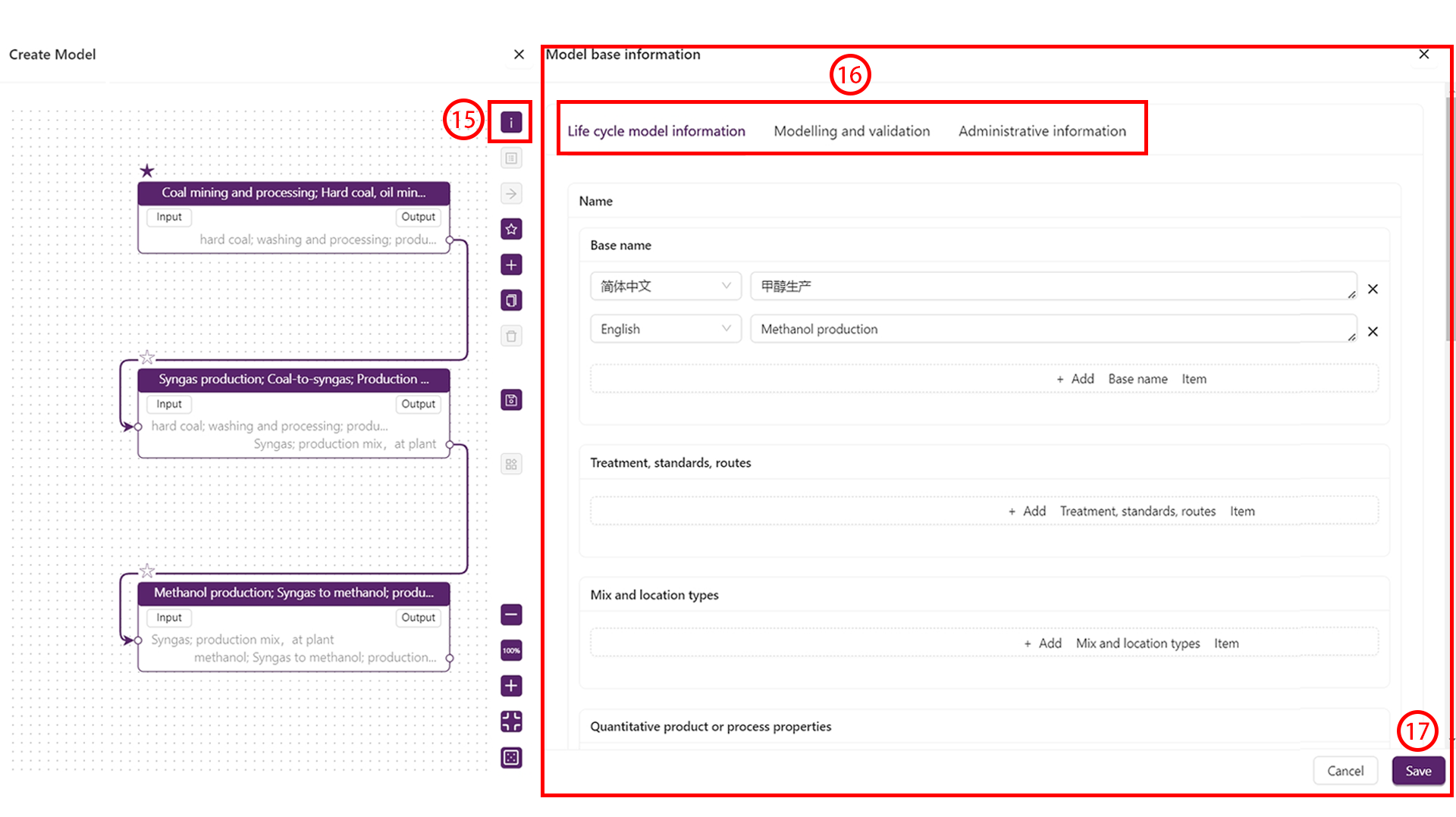
- Review the Model results panel, then save.
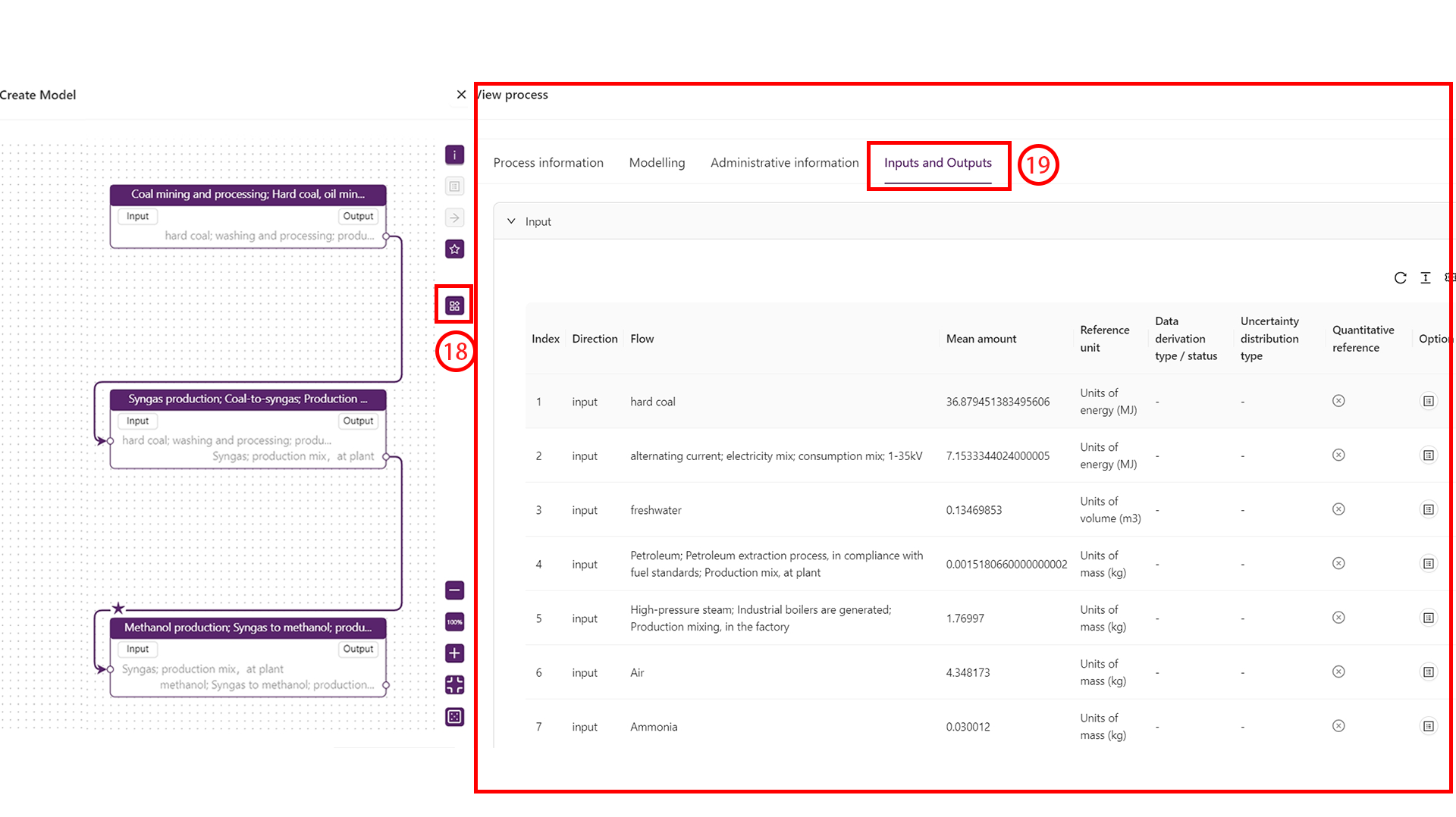
Models composed of multiple unit processes can be reused as processes. After saving, they appear in both “Models” and “Processes”.
Create a flow
- Open My Data → Flows and click
+.
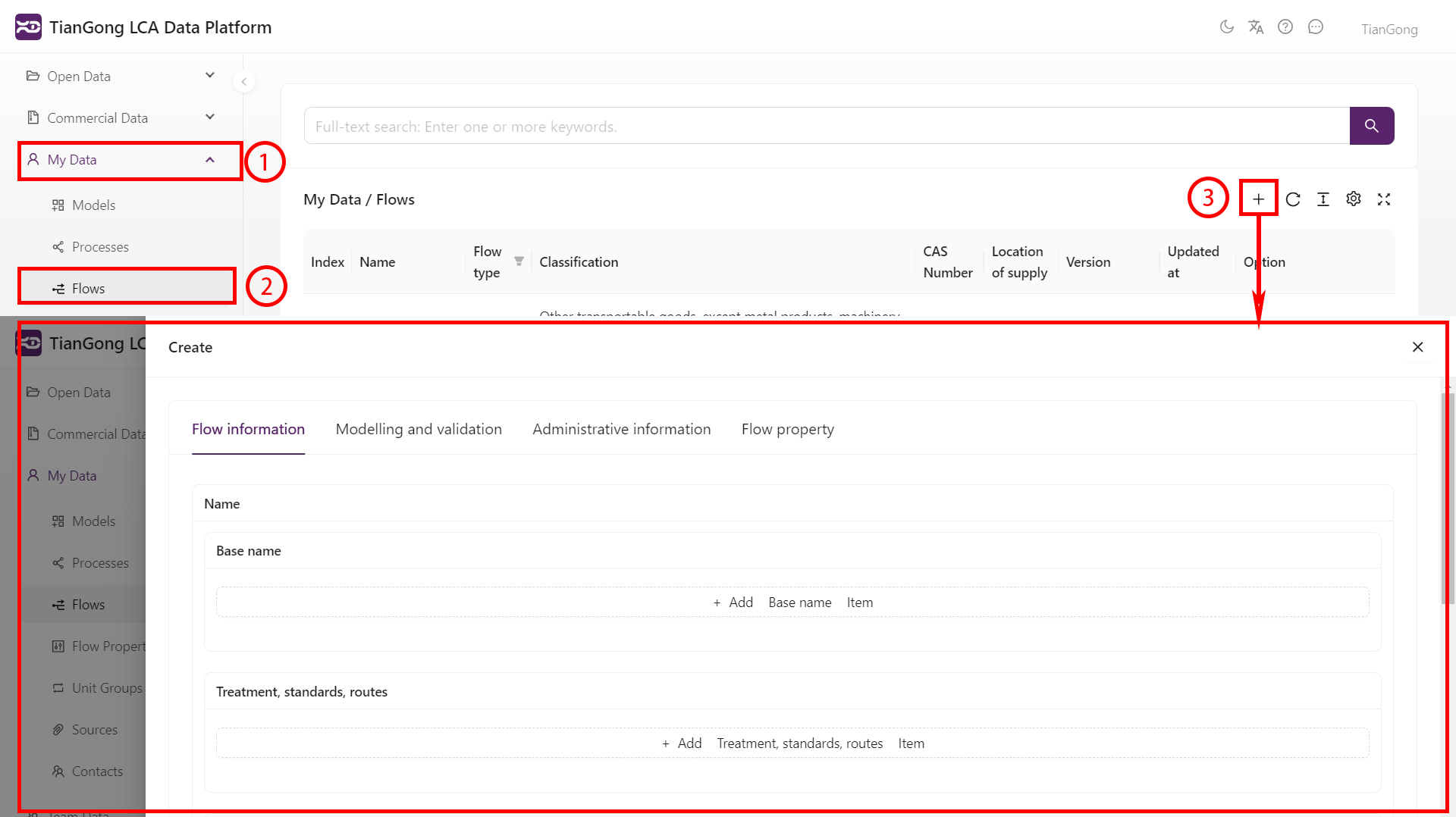
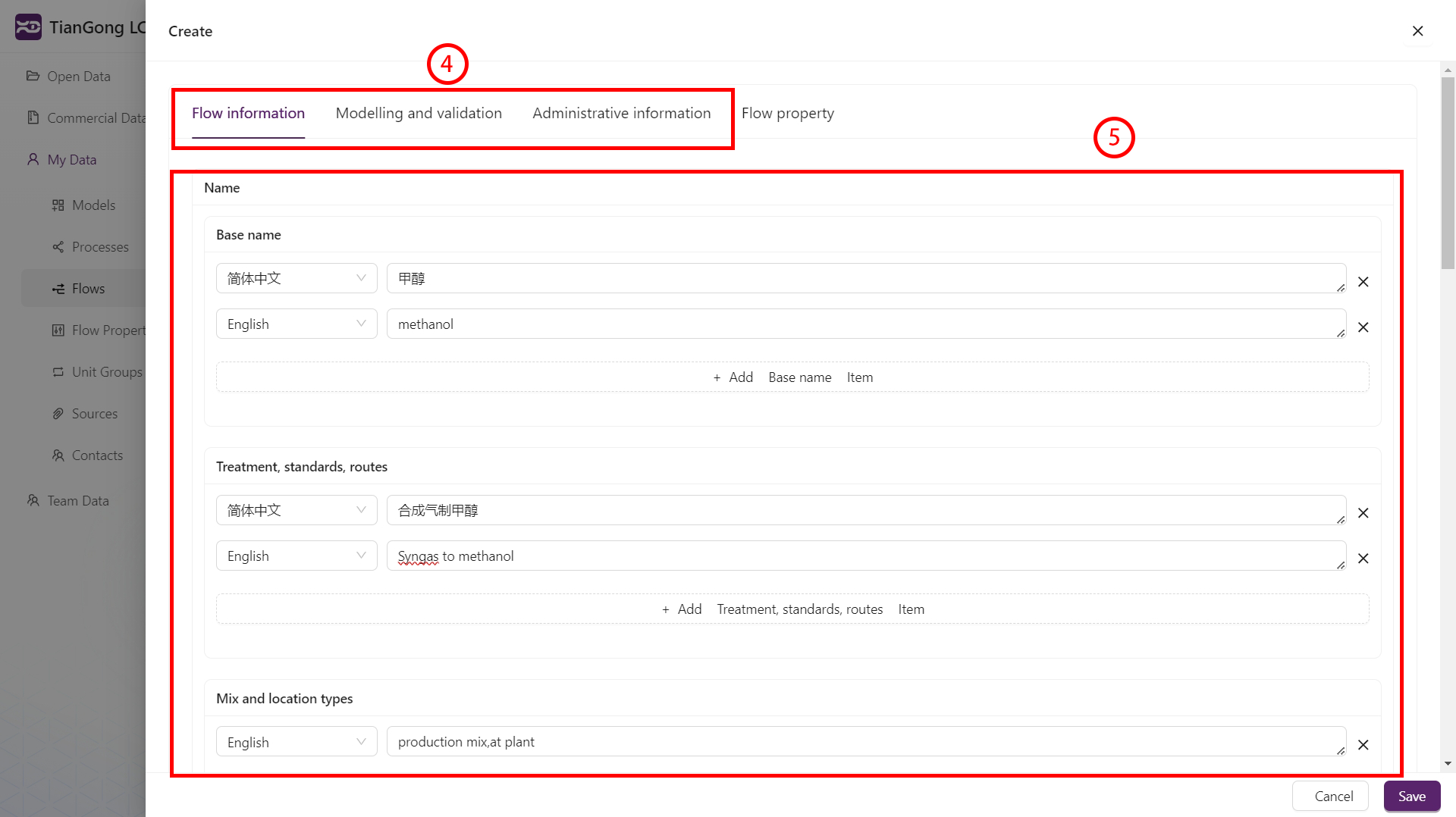
- Fill in “Flow information”, “Modelling & validation”, and “Management information”.
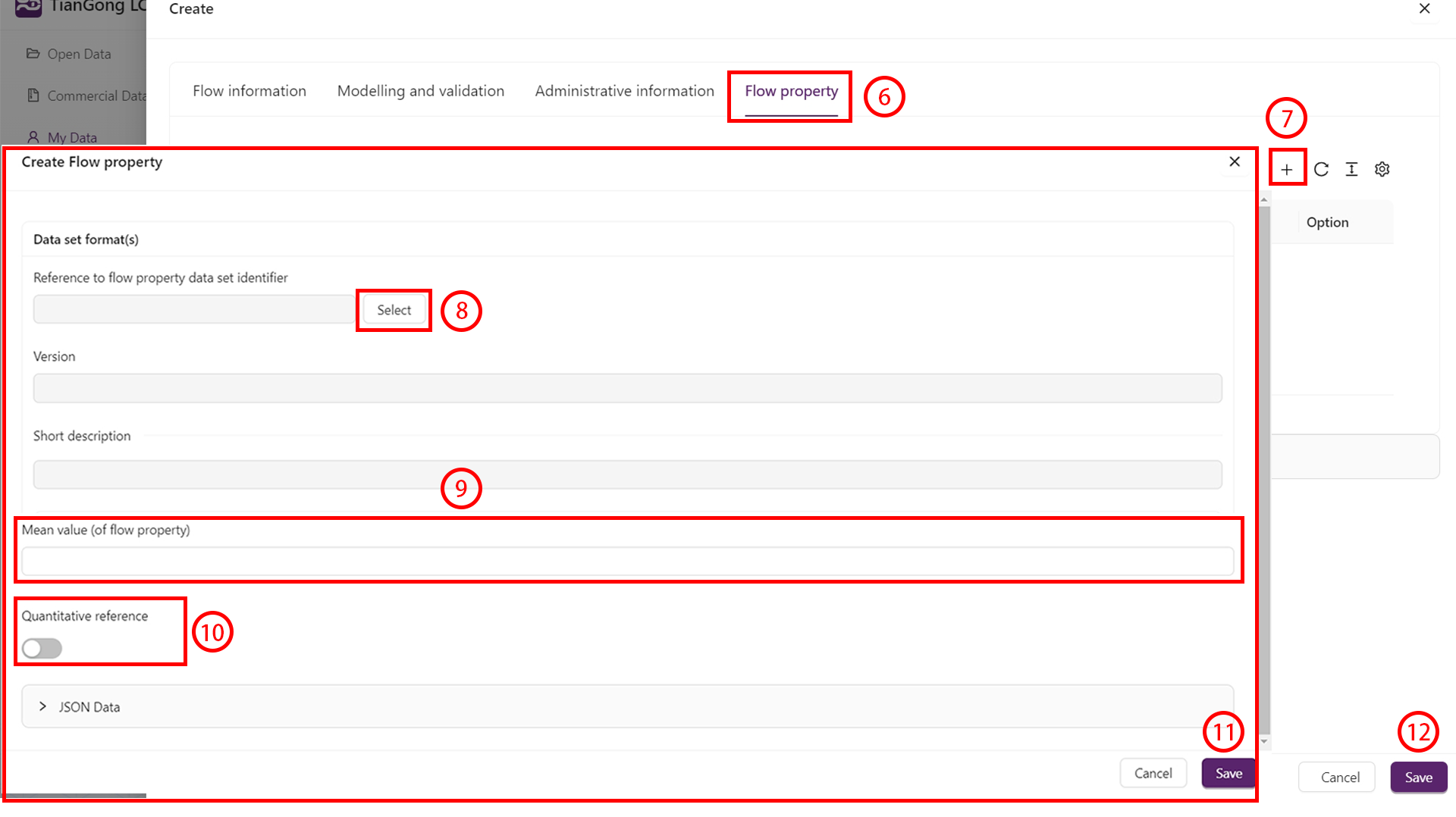
- Under Flow properties, click
+to select or create properties, then provide the values and quantity settings. - Save the flow.
Create a contact
- Open My Data → Contacts and click
+. - Provide names, emails, and optional organisation details (link to an existing team if needed).
- Save so the contact can be referenced elsewhere.
Create a source
- Open My Data → Sources and click
+. - Fill in authors, title, publication details, year, and DOI/URL.
- Upload attachments under “Electronic document link” if applicable, then save.
Citations should follow standard academic formats. Example:
Liu J., Zhao J., Wei H., et al., Comparative environmental assessment of methanol production technologies: A cradle-to-gate life cycle analysis. Energy Conversion and Management, 2024, 302:118128.
Unit groups & flow properties (advanced)
Custom unit groups or flow properties can introduce conversion issues or LCIA failures. Use them only when absolutely necessary. In My Data, ordinary users can search, view, inspect all versions, and export existing unit groups and flow properties to check the available foundational configuration. Creation, import, copy, create-version, edit, delete, contribution, and similar maintenance entry points are available only to system administrators; if the page says records need to be added or supplemented, contact an administrator.
Create a unit group
- If you are a system administrator, open My Data → Unit groups and click
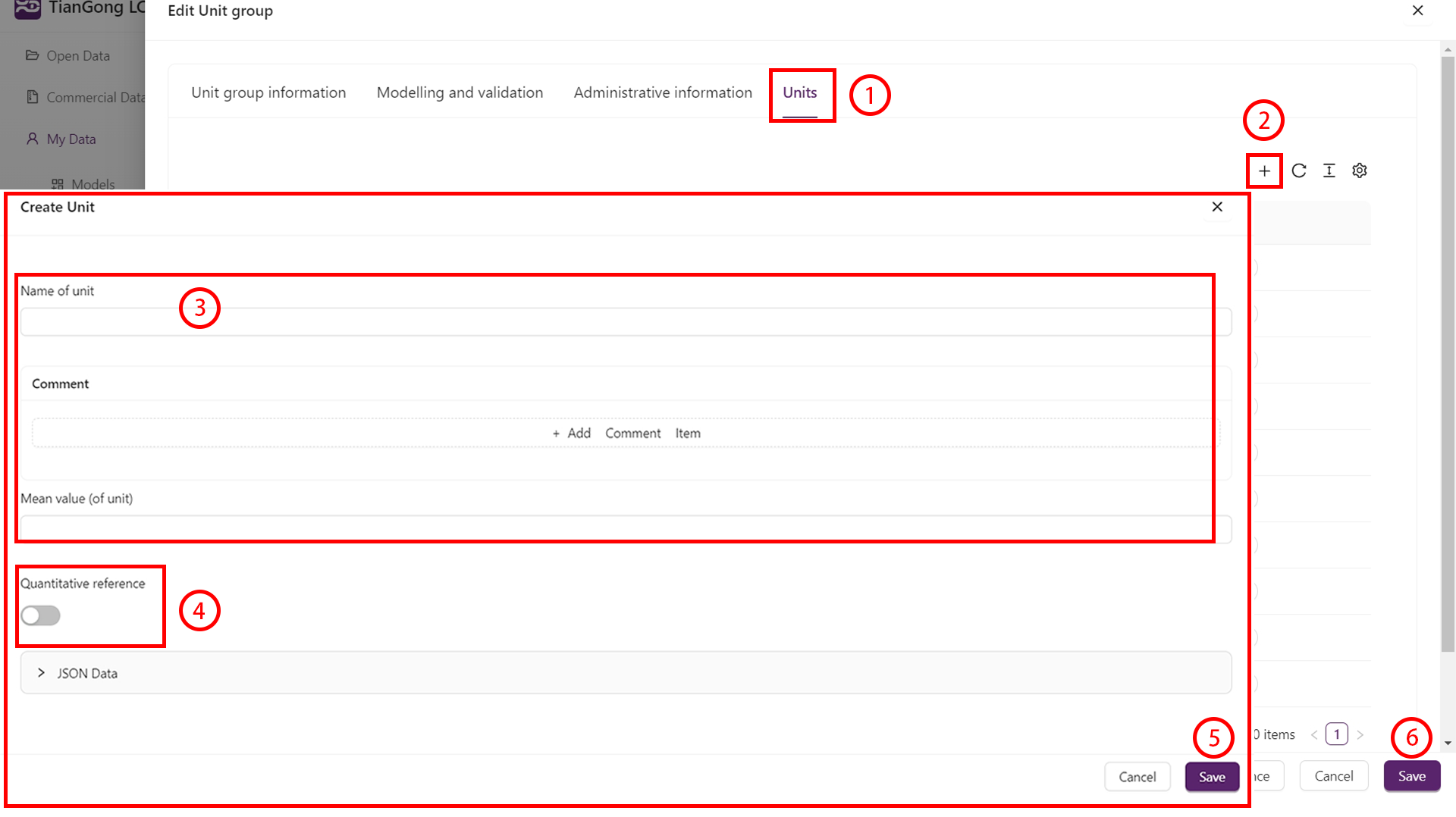
+. Other users should contact an administrator when unit groups need to be added or supplemented. - Fill in “Unit group information”, “Modelling & validation”, and “Management information”.
- Under Units, add each unit, define conversion factors, and mark the reference unit (e.g.
kgin a mass group).
Create a flow property
- If you are a system administrator, open My Data → Flow properties and click
+. Other users should contact an administrator when flow properties need to be added or supplemented. - Complete “Flow property information”, “Modelling & validation”, and “Management information”.
- Align the property category (technical / chemical / economic / other) with a compatible unit group.
- For updated datasets, link the previous version in “Management information”.
Data validation & publish
- Save drafts frequently to avoid losing progress.
- Run
Data checkon the process or model editor to validate required fields and references. The current forms try to place SDK validation issues on the relevant tab and field. Reference IDs or versions, classification fields, process-exchange multilingual comments, functional-unit notes, and over-length text now show repair hints beside the affected tab or field, including the current and allowed character counts when available. - Submit for review and monitor the status via the notification center or the filters described in Data Review. For process datasets, the system may run a Numerical stability gate first. If you see “Review submission is queued,” “Numerical stability gate is running,” or “Review submission is still processing in the background,” make sure the data is saved and click Submit for review again later to refresh the latest status.
- Collaborate by contributing the dataset to your team if others need to continue the work.